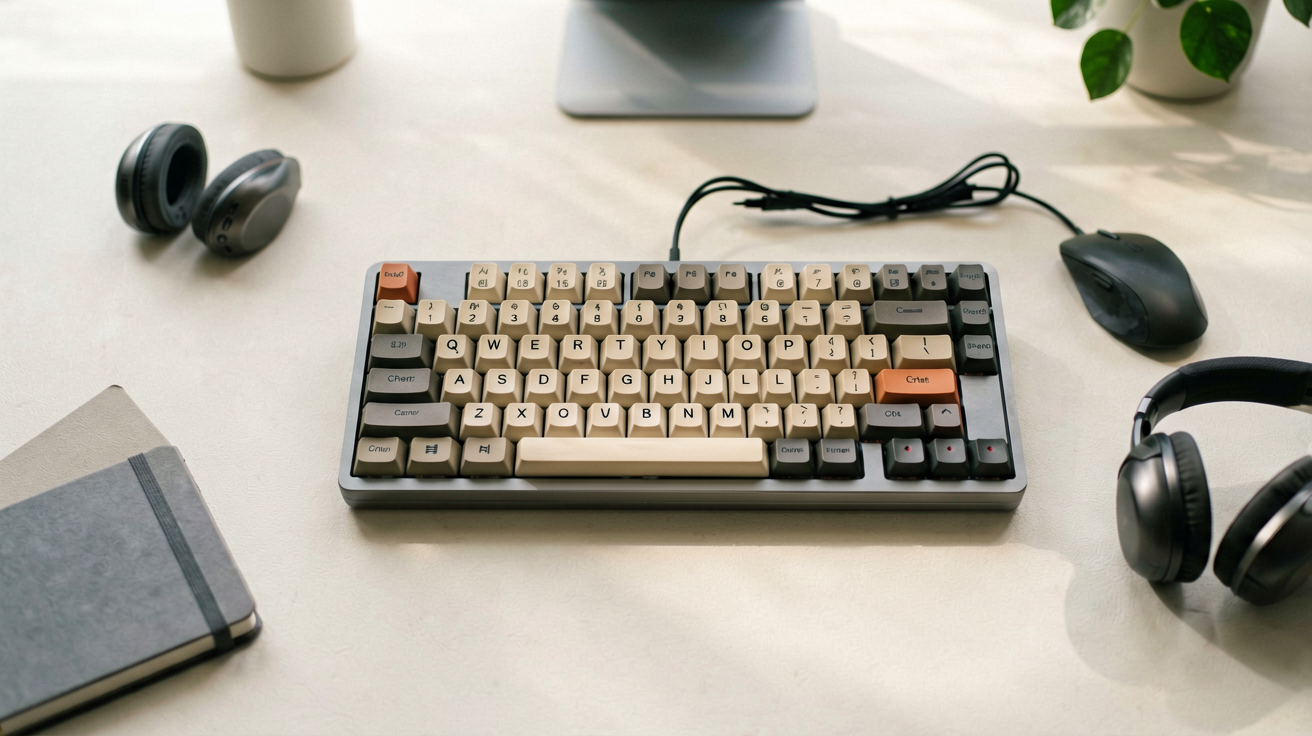
Best Mechanical Keyboard Under $50 for Coding in 2026
The Keychron C2 at $49.91 is the best mechanical keyboard for coding under $50 in 2026. Hot-swappable switches, Mac and Windows support, and build quality that rivals $100 boards.
Best Mechanical Keyboard Under $50 for Coding in 2026
I have gone through four mechanical keyboards in three years. The first two were impulse buys from Amazon random recommendations. One stopped working after eight months. The other was unbearably loud and my coworkers hated it. My third keyboard, a $120 model, lasted two years but I regretted spending that much on something I used every day. By the time I found a keyboard I actually liked, I had learned what matters and what does not.
The truth is most of what you pay extra for on mechanical keyboards is aesthetics. Aluminum cases, RGB lighting, and brand names add cost without improving your actual typing experience. The Core specs that matter for coding are switch feel, key layout, build stability, and compatibility with your operating system. You can find all four in the under $50 range if you know where to look.
This guide covers the best mechanical keyboards under $50 for coding in 2026. Every price and rating listed here was pulled from live Amazon listings. Prices and availability change constantly, so confirm the current figure before you buy. I am not affiliated with any brand listed. ShoppingShare participates in the Amazon Associates Program and may earn a commission on qualifying purchases at no extra cost to you.
Why Mechanical Keyboards Matter for Coders
Typing is the primary interface between a developer and their work. Most coders type hundreds of lines per day. That is thousands of keystrokes across millions of keypresses over a career. The switch you choose affects finger strain, typing speed consistency, and whether your hands hurt at the end of a long session.
Membrane keyboards use a rubber dome under each key. They are cheap and quiet but the feel degrades over time. The resistance becomes inconsistent and keys can start mushing after a year or two of heavy use. Mechanical keyboards use individual physical switches under each key. Each switch has its own spring and contact mechanism. The result is consistent actuation from day one to year five, assuming normal use.
The learning curve is real. If you have only ever used a laptop keyboard or a membrane board, mechanical switches feel different. Some keys require less force to press. The sound is louder. The tactile feedback is noticeable. Most people adapt within a few days. A small number find they never get used to it and switch back. If you are on the fence, buying a keyboard with hot-swappable switches lets you experiment without committing to one switch type forever.
Top Pick: Keychron C2 Full Size Mechanical Keyboard
Who should buy this and why now: you code for more than two hours a day and want a reliable mechanical keyboard that does not break the bank. At $49.91 with a 4.3 star rating from over 4,000 reviews (as of August 15, 2026), the Keychron C2 delivers the features most developers actually need without the premium price tag.
The Keychron C2 is a full-size 104-key mechanical keyboard with hot-swappable switches. It comes with Gateron Brown tactile switches out of the box, which provide a subtle bump when each key actuates. The bump is noticeable but not distracting, making it a good middle ground between linear and clicky switches. If you prefer a different feel, the hot-swap sockets let you install any standard three-pin or five-pin mechanical switch without soldering.
The keyboard connects via USB-C cable and includes a detachable cable for easy transport. It works natively with both macOS and Windows, with dedicated keycaps for each system included in the box. A physical switch on the back toggles between the two layouts. For Mac users, this means proper Command and Option key placement without any software configuration.
Build quality is solid for the price. The case is made from ABS plastic, which is lighter and less expensive than aluminum but perfectly adequate for desk use. The keyboard sits flat and stable on the desk. There is no flex in the case during normal typing. The keycaps are double-shot ABS, which means the legends are molded into the plastic rather than printed on top. Double-shot keycaps do not fade over time the way single-shot printed keycaps do.
The Keychron C2 ships with a standard ANSI layout and includes a keycap puller and switch puller in the box. That is useful if you want to swap switches or replace worn keycaps later. The keyboard does not include wrist rest, so if you plan to type for extended sessions you may want to add one separately.
Keychron C2 Specs at a Glance
- Layout: Full-size 104 keys (ANSI)
- Switches: Gateron Brown (tactile), hot-swappable
- Connection: USB-C wired
- Compatibility: macOS and Windows
- Keycaps: Double-shot ABS
- Weight: Approximately 2.2 lbs
- Price: $49.91 on Amazon (as of August 2026)
- Rating: 4.3 stars from 4,000+ reviews
Who It Is Not For
If you need a wireless keyboard, the Keychron C2 is wired only. Keychron offers wireless models in their line, but they start around $70 and above. If you want RGB backlighting with custom colors, this model has static white backlighting only. If you are a Mac user who needs a compact 75-percent layout, the C2 is full-size and may take up more desk space than you want. For those cases, the C2 Pro or other Keychron compact models are better fits, though they cost more.
Runner Up: RK Royal Kludge RK61 60 Percent Keyboard
Who should buy this and why now: you have limited desk space and want a compact keyboard that still delivers mechanical switch feel. At $39.99 with a 4.6 star rating from thousands of reviews, the RK61 is one of the best-selling compact mechanical keyboards on Amazon.
The RK61 is a 60-percent layout keyboard, meaning it has 61 keys instead of the usual 104. It omits the number pad, function row, arrow keys, and navigation cluster. Those keys are accessed through function layer combinations, which takes some getting used to but most coders adapt within a week. The compact size leaves more room for mouse movement, which matters if you use a large mousepad or work at a cramped desk.
The keyboard uses Gateron style switches that are hot-swappable on later revisions. The exact switch type depends on which version you buy. Red linear, brown tactile, and blue clicky options are all available. The keyboard connects via USB-C and includes a short cable. It has RGB backlighting with multiple color modes and brightness levels.
Build quality is decent for the price. The case is plastic and feels lightweight. The keyboard does not slide around on the desk, which is a common issue with lighter keyboards. The keycaps are single-shot ABS, which means the legends may fade over time with heavy use. The 60-percent layout is the main compromise. You lose dedicated arrow keys and the function row, which many coding IDEs rely on for shortcuts. If you use Vim-style navigation or keyboard-driven development workflows, the absence of arrow keys will slow you down until you build the muscle memory for layer-based navigation.
Budget Pick: E-YOOSO Wired Mechanical Gaming Keyboard
Who should buy this and why now: you want the lowest possible price for a mechanical keyboard that still feels good for typing. At $29.99 with a 4.7 star rating, this is one of the highest-rated budget mechanical keyboards on Amazon.
The E-YOOSO keyboard uses red linear switches, which are smooth and quiet compared to tactile or clicky alternatives. Red switches require less force to actuate, which can reduce finger fatigue during long typing sessions. The keyboard has a full 104-key layout with dedicated arrow keys and function row, so there is no learning curve if you are coming from a membrane keyboard.
The build is plastic and lightweight. The keys feel responsive and the actuation is consistent across all 104 keys. Backlighting is single-zone red, which is functional but not customizable. The keyboard does not have hot-swap sockets, so you are stuck with the red switches that come installed. If you try them and decide you prefer tactile or clicky switches, you would need to replace the entire board.
At $29.99, this keyboard is hard to beat for pure value. It is not going to last as long as a Keychron. The keycaps will likely shine and fade faster. The plastic case may crack if dropped. But for someone who wants to try mechanical keyboards without spending much, it is a safe entry point. If you discover you love mechanical switches, upgrading to a better board later is an easy decision.
How to Choose the Right Keyboard for Your Coding Style
Not all coding is the same. The keyboard that suits a Python developer who writes scripts all day is different from the one that suits a game developer using heavy shortcut-driven tools. Here is how to match keyboard features to your actual workflow.
If you type primarily in text editors and terminals, a full-size or 75-percent keyboard with dedicated arrow keys and function row is ideal. You will use those keys constantly and losing them to layer combinations is frustrating. The Keychron C2 is the best choice here because it gives you full layout at a reasonable price.
If you work in IDEs with heavy shortcut usage, like IntelliJ or VS Code with lots of custom bindings, the function row and escape key become important. Again, a full-size or 75-percent layout is the way to go. Avoid 60-percent keyboards unless you are willing to retrain your muscle memory.
If you share a workspace or work in an open office, switch choice matters more than layout. Blue clicky switches are loud and will annoy people nearby. Red linear switches are the quietest option. Brown tactile switches are moderate in volume. If noise is a concern, stick with red or brown.
If you switch between Mac and Windows frequently, key compatibility is critical. Some budget keyboards only include Windows keycaps, which means the Command and Option keys are swapped on Mac. The Keychron C2 includes both sets of keycaps and a physical toggle switch. Other brands may require you to manually replace keycaps, which is annoying and risks breaking them.
Maintenance Tips for Long-Lasting Keyboards
Mechanical keyboards are durable but they still need basic care. Dust and debris accumulate under keycaps over time. Crumbs from snacks, pet hair, and skin cells all find their way into the gaps. Here is how to keep your keyboard clean without damaging it.
Remove the keycaps regularly using a keycap puller. Do not yank them off by hand. Plastic keycap stems can break if you twist or pull at an angle. A proper keycap puller applies even force and removes caps safely. Once the caps are off, vacuum the exposed switches with a soft brush attachment. You can also use compressed air to blow out loose debris.
Clean keycaps in warm soapy water. Dry them completely before putting them back. Never put a keyboard back together while any part is damp. Moisture inside the switch mechanism causes corrosion and key failure. Let everything air dry for at least 24 hours before reassembly.
For the keyboard base itself, wipe it with a slightly damp cloth. Do not spray cleaner directly onto the keyboard. Use a microfiber cloth to avoid scratching the keycaps. For sticky residue around keys, a cotton swab dipped in isopropyl alcohol works well. Let it evaporate completely before use.
Switches themselves rarely need cleaning. If a single key starts feeling gritty or inconsistent, you can remove it and blow compressed air into the switch housing. If the problem persists, replace the switch. Hot-swappable keyboards make this trivial. Non-hot-swappable boards require soldering skill or a trip to a repair shop.
Common Mistakes When Buying a Budget Mechanical Keyboard
The under $50 market is crowded with mediocre options. Here are the most common mistakes buyers make and how to avoid them.
Mistake one is buying the first keyboard you see on Amazon. The search results are sorted by relevance and sales rank, not by quality. A keyboard with 10,000 reviews and a 4.0 rating is a safer bet than one with 200 reviews and a 4.8 rating. The higher review count means more real-world feedback and a better signal for actual quality. Look for at least 500 reviews before committing.
Mistake two is ignoring switch type. Red, brown, and blue switches feel completely different. If you order based on a photo alone, you may end up with clicky blue switches in a shared workspace or stiff linear switches if you prefer tactile feedback. Read the product description carefully. Most listings specify the switch type in the title or bullet points. If they do not, assume it is blue clicky and look elsewhere.
Mistake three is overlooking layout size. A 60-percent keyboard saves desk space but costs you convenience. Dedicated arrow keys, function row, and number pad are used constantly by developers. Losing them forces you to use layer combinations for basic navigation. If you are not sure, go full-size or 75-percent. You can always downsize later once you know what you miss.
Mistake four is assuming all mechanical keyboards are the same quality. Price correlates loosely with build quality, but not perfectly. Some $40 keyboards use better switches and keycaps than $60 competitors. The trick is reading reviews that mention long-term use. Look for comments from buyers who have had the keyboard for six months or more. Early reviews are often overly positive. Long-term reviews reveal the real durability picture.
Final Thoughts
You do not need to spend $100 or more on a mechanical keyboard to type comfortably while coding. The Keychron C2 at $49.91 gives you hot-swappable switches, dual-OS support, and build quality that will last for years. The RK61 at $39.99 is a solid compact alternative for tight spaces. The E-YOOSO at $29.99 is the entry-level option for anyone who wants to try mechanical without a big investment.
The best keyboard is the one you will actually use every day. Spend a few minutes thinking about your layout needs, switch preferences, and OS compatibility before you buy. The small amount of research pays off in years of comfortable typing.
Prices and availability are subject to change. Check the live listing before purchasing to confirm the current price and stock status.
We may earn commissions from Amazon and Skimlinks partner merchants (affiliate links, supports the site).
Related Guides
- Best Wireless Keyboards Under $30 in 2026
- Best Ergonomic Mouse Pad with Gel Wrist Rest
- Best Desk Gadgets for Coworker Birthday Gift Under $30
Internal Picks
- Looking for a ready shortlist? See our Birthday Gifts
- Looking for a ready shortlist? See our Valentine's Day Gifts
ShoppingShare participates in the Amazon Associates Program. We may earn commissions from qualifying purchases at no extra cost to you. Our reviews are based on independent analysis of user reviews and product specifications.
More Reviews & Guides
View all →

Found Something You Like?
All prices on Amazon may change. Check the current deal before it's gone.
More Amazon Deals →